LandOffer MCP: Use Claude Code, Codex, or Muse for Your Job Search
Quick Overview
Choose the smallest LandOffer MCP access mode, verify one employer listing, and separate a matched role, prepared materials, and a submitted application.
Use LandOffer MCP to find and verify one role before giving an assistant access to personal data. If you only need public listings, start with public search. If you want to compare the matches associated with your LandOffer profile, connect for that purpose. Consider access to application materials only after you have opened an employer posting and decided that the role is worth a closer look.
LandOffer's official connection page lists Muse, Codex, and Claude Code. The setup varies by assistant, but the useful test is the same: can it return one role you can find on the employer's site, explain what it used to assess fit, and stop when you ask it to? For a wider look at where the connector fits alongside autofill and matching, see PracHub's LandOffer review.

Choose the access you need for this session
MCP, short for Model Context Protocol, lets a compatible assistant use tools and data from another service. The connector determines what it exposes, and the assistant determines how you see and approve its actions. A connected status tells you that the assistant can reach something. It does not tell you which account it sees, whether a listing is current, or whether the employer received an application.
Start with one question. If it is “What backend roles are open in Seattle?”, you need listings. If it is “Which of my matches has the strongest evidence for that requirement?”, you need a connection that can read your matches. If it is “Can I prepare an answer about my retry-worker project for this one role?”, you might need a relevant document or a short excerpt that you supply yourself.
| Your job today | Where to start | Evidence that you have enough access |
|---|---|---|
| Discover public listings | Try the public-search option where your client offers it. | The assistant gives a specific role, employer, location, and source link that you can open. |
| Review your own LandOffer matches | Use the signed-in match path or the narrowest account access offered for your client. | It identifies one match from your account and distinguishes the posting text from its fit assessment. |
| Prepare materials for one chosen role | Review the available permissions. Provide one relevant excerpt yourself if that is enough. | You can inspect the exact answer or attachment before deciding whether anyone should receive it. |
These rows describe three tasks, rather than three permission names shared by every client. The LandOffer screen showed two choices for private-key access, Read only and Read + application materials, when we checked it. A permission to read materials does not mean you should hand over a full résumé for an initial search. It also does not establish that any particular assistant can submit an application on any employer site.
Find the right setup for Muse, Codex, or Claude Code
Open the LandOffer connection page and select the assistant you are using. Use the instructions shown for that client and account. A command from a forum post may be for a different client version or may add the connector to the wrong workspace.
Muse. LandOffer shows a public-search setup and a separate route for personalized matching. For the public option, the setup screen provides a message and a client ID, and says to leave the client secret blank. For personalized matching, it tells you to follow the sign-in link and approve the connection to your LandOffer account. If public discovery answers today's question, you can stop before the sign-in step. If you need matches, return after approving access and test one read.
Codex and Claude Code. In the inspected LandOffer screen, these two options showed a private-key section and a message for the chosen assistant. Review the scope displayed before creating or revealing a key. Follow the current client and LandOffer instructions for storing it privately. Keep it out of shared prompts, screenshots, issue comments, and project files that could be committed. Anthropic's Claude Code MCP documentation explains how to inspect server status; the listing test below is a separate check that the tool returned the data you needed.
LandOffer advertises reviewing matches and applying to jobs you approve through a connected assistant. Its connection screen is separate from the LandOffer Job SuperAgent workspace. Even when the assistant offers an application action, look at which tool would open or submit the employer's form. A walkthrough that can navigate a form in one client does not prove that a different client, or LandOffer's own cloud workflow, performed that action. We checked the setup controls; we did not connect a live account to these three clients or send applications.
Run a public search you can check by hand
Begin with a query that asks for evidence you can recognize. The prompt below uses a fictional candidate and no personal profile.
Find up to three public backend software engineer postings in Seattle or explicitly open to remote applicants in Washington. Favor jobs that mention worker queues or event processing. For each, show the employer, exact title, location wording, employer posting link if available, and which requirement you saw. If you have a job-board result and no employer link, label it unverified. Search only. Do not open an application form, access profile data, or submit anything.
Inspect the first result yourself. Suppose the assistant reports “Backend Engineer, Delivery Events” at fictional Harbor Finch as remote in Washington. The employer posting instead says “Seattle hybrid, three days on site.” The title and job ID match. The assistant has found a usable listing, but its location claim is wrong. If hybrid is outside your constraints, set the role aside; there is no reason to retrieve your profile or open an application.
The second result might only have a job-board link. Keep it as an unverified lead, even if its summary looks accurate. Ask the assistant to check for a primary posting or a current employer application link. If the employer page shows that the requisition is closed, mark it closed and stop. If the sources disagree about the title, team, or job ID, treat the records as separate until you can confirm they refer to the same requisition.
A short result list makes these errors easy to spot. You can broaden the query after a useful test. Adding more search results before testing one source gives you more entries to reconcile without showing whether the assistant understands your location constraints.
Compare one account match without giving away the whole profile
Move to personalized access when you have a reason to compare an account match, rather than to make the public search sound more confident. Test the connection with one read. Ask the assistant to identify where it obtained the match and explicitly separate details in the posting from facts you supplied about yourself.
Read one LandOffer match for a backend role that mentions event processing. Return the title, employer posting link and one job requirement. In a separate column, list which evidence I provided for that requirement. Do not retrieve or display full documents. If the connection cannot read my matches or the source is unclear, say so. Do not change my profile or application state.
Imagine a second Harbor Finch posting for a remote worker-platform team. The employer asks for experience operating retryable event handlers. The candidate says they owned retries and alerting for an internal queue, but did not choose the storage layer and has no audited traffic number. The match summary can call that relevant evidence and name the uncertainty. It should not upgrade “owned retries and alerting” to “designed the event platform” or invent a throughput figure.
A helpful output has three clearly labeled parts: the employer's requirement, the candidate's evidence, and an unresolved question. In this example, that question might be whether the role expects deep Kafka operating experience or will consider another queue system. If the tool only repeats a general public search result and calls it your personal match, the account test did not pass. Check the active connection and scope instead of handing it more data.
Once a role looks plausible, save its employer link and one fact you can defend. If you want to rehearse the retry-worker example, Present a project deep dive gives you a practice prompt on ownership and trade-offs. Use it to explain your decision, the test you ran, and what you did not own. This is practice for a conversation, not a forecast of Harbor Finch's interview.
Put an approval step between review and submission
A connection may allow an assistant to read or prepare something without making it appropriate to send. For the fictional worker-platform role, the candidate can use this request once the posting is confirmed:
Prepare a two-sentence answer for the experience question using only my reviewed description of the retry-worker project. Show the exact text and any proposed attachment, and name the employer and requisition. Stop there. Do not open a submission flow, change application status, upload a document, or submit unless I approve that separate action for this exact role.
Read the answer against your actual experience. If it implies you owned the whole platform, replace that claim before sending anything. Check the destination, form, résumé version, and any required fields for this employer. A generic “looks good” while reading a draft does not tell an assistant that you want a document uploaded or an application submitted. If you decide to proceed, name the intended action and the single requisition.
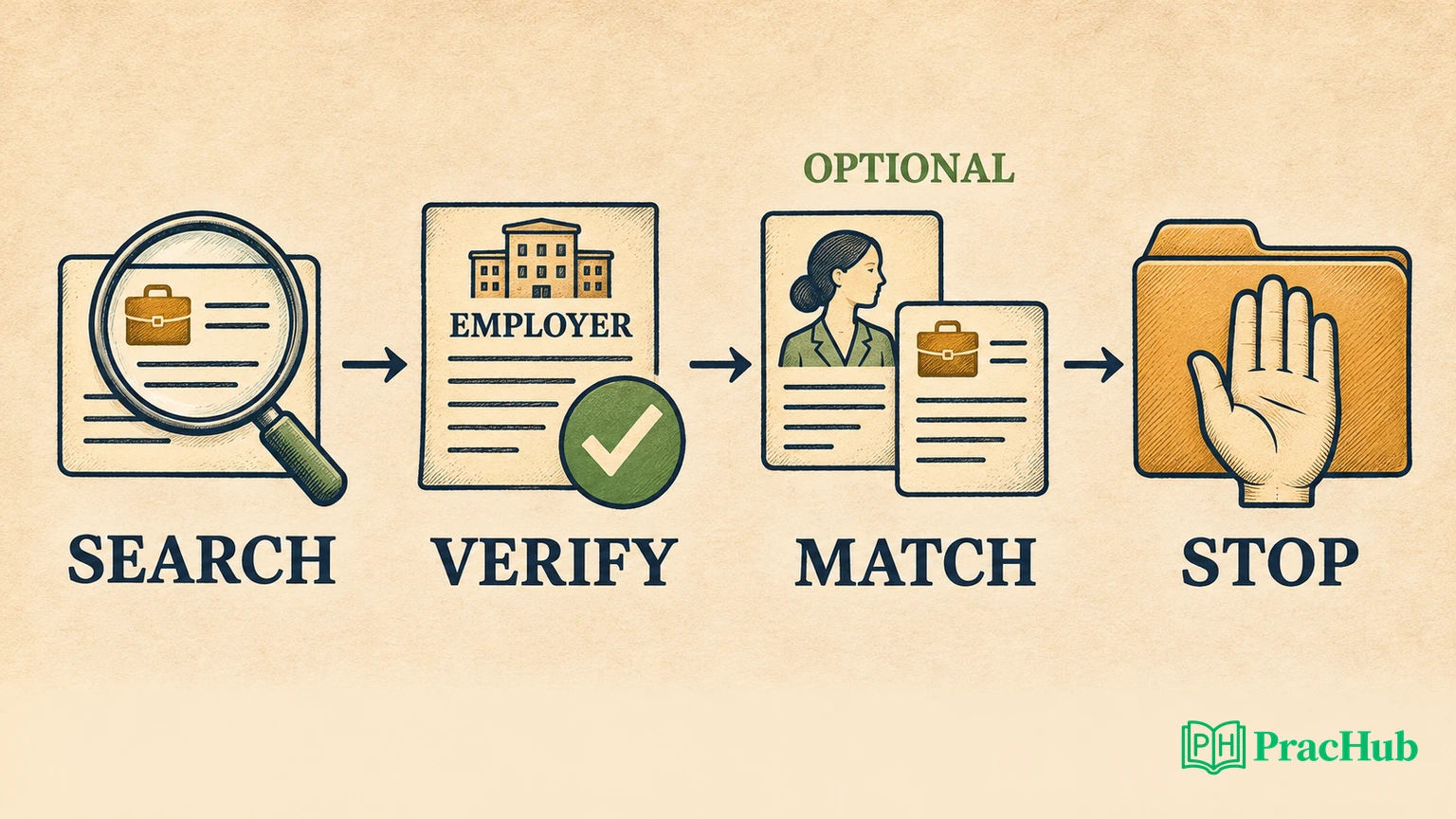
Keep application states separate in your own notes. A role can be found, verified, matched, prepared, or submitted. A completed draft is a prepared role. A filled browser form is still unsubmitted. After sending it, look for a receipt that matches the requisition. If you choose to submit, keep the employer confirmation page, message, or record that matches the requisition. If the assistant says “submitted” and the employer gives no confirmation, verify the state before retrying; a blind repeat can send the same application twice.
This distinction matters when you change assistants midstream. Carry over the public link, which facts were verified, and the state you observed. Recheck which account and scope are active in the second client. Do not infer that a prior approval, attachment choice, or pending form came with the chat.
Troubleshoot by checking which step failed
If search works but personal matches do not, you may still be using public mode or a connection that lacks account access. Check the connection screen before changing credentials. If account access is correct and the tool still returns no matches, record that outcome. An empty result does not justify guessing about your profile or the jobs you qualify for.
If the assistant can read the match but cannot see application materials, decide whether you need broader access at all. For a single experience question, a short excerpt that you review may be enough. If you broaden access, recheck what the assistant can read and what action it is about to take. LandOffer's privacy page describes how the service handles personal data and gives you a starting point for checking account controls. Your assistant's own data controls are a separate setting.
If an employer link fails, try the employer's careers site or check the requisition ID from a second source. If the answer came from old data, label it stale. If the connection fails, keep the public links you already verified. You can check them in another browser or assistant without reopening account access.
Start on the LandOffer connection page with the narrowest access that answers your first question. Try one public result, verify one employer posting, and stop until you can explain why that role is worth reviewing. You can add account access later when it has a clear job to do.
Sources and Further Reading
- LandOffer: Apply through Muse, Codex, or Claude Code — first-party connection choices and permission labels, observed November 12, 2026.
- LandOffer: Public product overview — LandOffer's description of assistant access and approval. Its example animation is a product illustration.
- LandOffer: Privacy — first-party data handling and account controls.
- Anthropic: Connect Claude Code to tools via MCP — client setup and server status.
- Model Context Protocol: Authorization specification — what transport-level authorization is designed to control.
Comments (0)