Does HackerRank Record Your Screen? Proctoring, Tab Switching, Webcam, and Copy-Paste Rules
Quick Overview
This candidate-focused guide explains whether HackerRank records the screen, detects tab changes, requires a webcam, and tracks copy-paste activity. It compares standard tracking, Secure Mode, Proctor Mode, Desktop App Mode, Image Proctoring, and Photo ID; shows what recruiters can review; and gives a compliant test-day preparation workflow using PracHub.
You are halfway through a HackerRank assessment when a notification opens another tab. You switch back immediately, but the question is already running through your head: did HackerRank record that, and can the recruiter see it?
The honest answer is more nuanced than a simple yes or no. HackerRank can log tab changes and copy-paste activity on ordinary tests, while stricter configurations can require full-screen mode, webcam access, screen sharing, periodic screenshots, or a locked desktop app.
Before worrying about every integrity signal, prepare to solve the assessment cleanly. Use PracHub's real interview questions with written solutions and company-specific interview prep to practice under the same time limit and resource rules shown in your invitation.
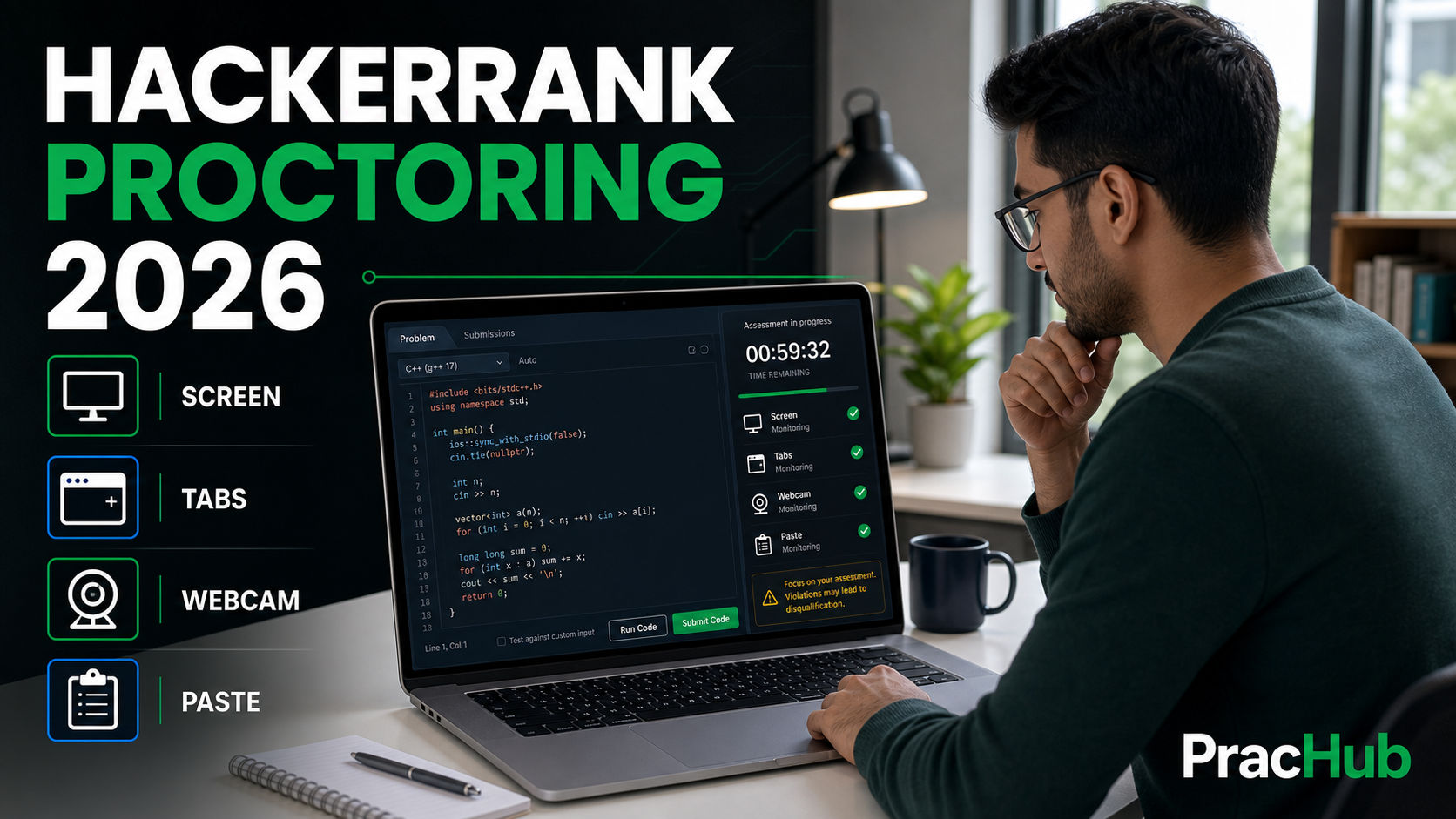
HackerRank monitoring depends on the test mode selected by the hiring company.
Quick Answer: Does HackerRank Record Your Screen?
HackerRank can record or capture your screen when the hiring company enables Proctor Mode or Desktop App Mode, but not every HackerRank test includes full-screen recording. A standard assessment may only log events such as leaving the test window, the duration of each absence, and copy-paste activity.
Secure Mode adds full-screen enforcement, tab-switch warnings, single-monitor checks, and copy-paste restrictions. Proctor Mode adds screen sharing, periodic screenshots, screenshot analysis, and a session replay. Webcam images and photo identification are separate controls that may also be enabled.
Your invitation, onboarding screen, permission prompts, and test instructions are the source of truth for your specific assessment.
HackerRank Monitoring Modes Compared
| Test configuration | What may be monitored | What the candidate notices |
|---|---|---|
| Standard test with integrity tracking | Tab exits, time away, copy-paste events, pasted content, and code evolution | Normal browser test; rules appear before starting |
| Secure Mode | Full-screen exits, tab switches, copy-paste attempts, and monitor count | Full-screen requirement, one-monitor check, and warnings |
| Proctor Mode | Secure Mode signals plus screen sharing, screenshots, session replay, and optional image analysis | Consent flow and permission checks before the test |
| Desktop App Mode | Proctor Mode signals plus operating-system-level controls, blocked applications, remote-access checks, and virtual-machine restrictions | HackerRank app installation and system permissions |
| Image Proctoring | Periodic webcam images during the assessment | Webcam permission and face-visibility check |
| Photo Identification | One candidate photo before the test for manual identity review | Pre-test photo capture |
HackerRank's current test-integrity documentation separates these modes because each gives the employer a different level of control. Do not assume a friend's test settings apply to yours, even when both invitations use HackerRank.
Three Different Things Candidates Call “Screen Recording”
1. Tab and window activity logs
HackerRank can record when you leave the active test window, how many times it happens, and how long you stay away. That is an event log, not necessarily a video of everything on your computer.
2. Keystroke code playback
For coding questions, recruiters can replay how the answer developed inside the editor. This helps them see edits, runs, inactivity, and sudden large changes. Code playback is different from recording your entire desktop.
3. Screen capture and session replay
In Proctor Mode, candidates are asked to share their screen. HackerRank says the platform captures screenshots every 15 seconds and can increase the frequency to every five seconds around suspected violations. The report can provide a timeline-based replay of the screen session with flagged events.
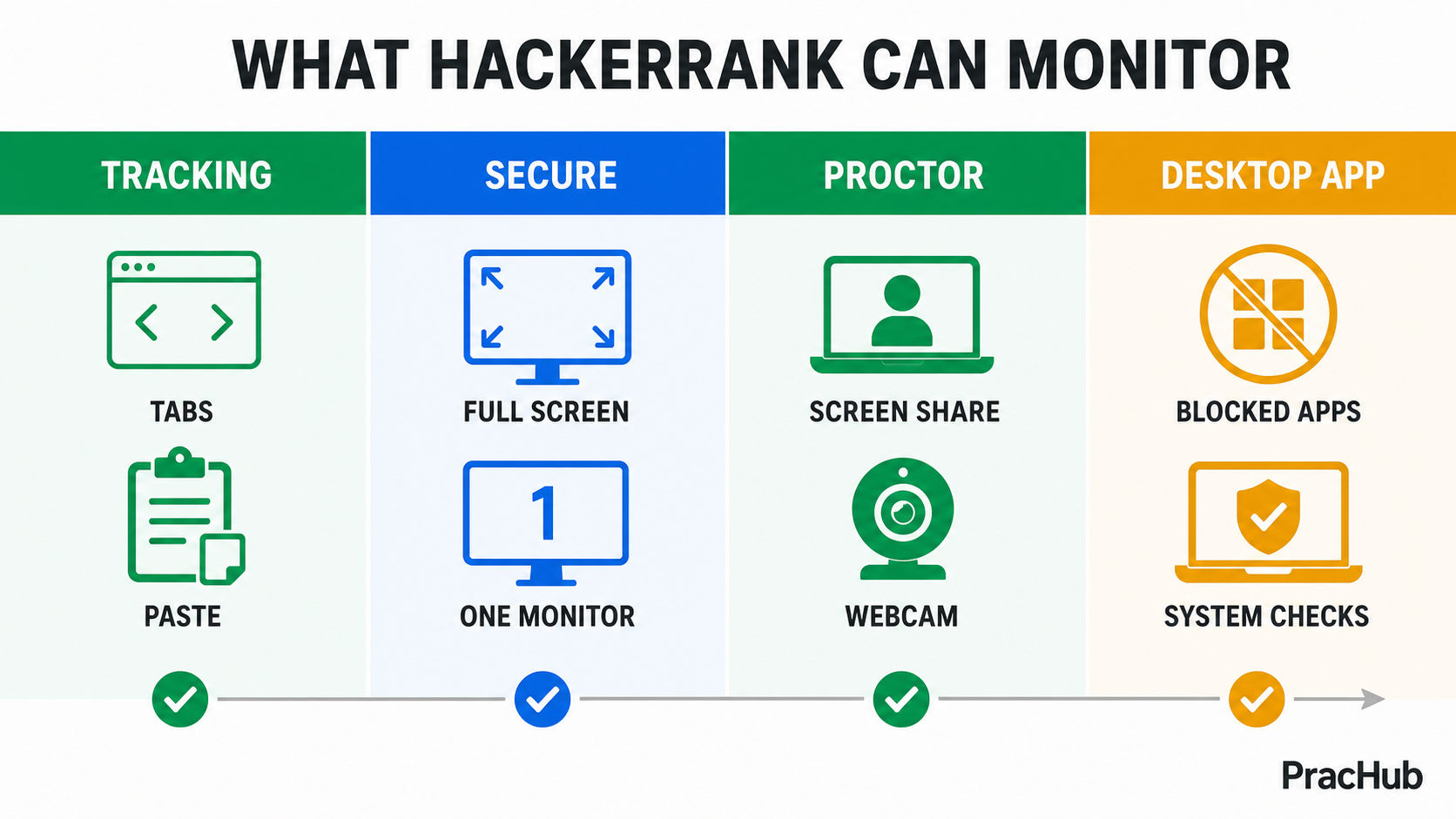
“HackerRank recording” can mean event logs, editor playback, screenshots, or a broader proctored session.
Does HackerRank Detect Tab Switching?
Yes. HackerRank can detect when the test tab or window loses focus. Its reports can show exact timestamps, the number of exits, and time spent outside the active window. HackerRank's October 2025 release notes say tab-switch detection and copy-paste tracking became default integrity signals for newer test configurations.
Secure Mode goes further by displaying a warning and logging the violation when a candidate switches tabs or exits full-screen. Proctor Mode can combine that event with nearby screenshots, while the Desktop App prevents navigation to other applications or browser tabs.
Alt+Tab, clicking another browser tab, minimizing the window, or opening another application can all create an out-of-window event. The platform does not need to know why you left to record that the active test lost focus.
Does One Accidental Tab Switch Mean Automatic Failure?
Not necessarily. An integrity event is evidence for review, not a universal automatic rejection rule. HackerRank's recruiter documentation says hiring teams can inspect timestamps and durations, and can manually override an integrity flag when they determine it is not valid.
The employer still controls the decision. Some test instructions may state a stricter policy, so read them before clicking Start. A two-second accidental switch and repeated long absences create very different context, but neither this article nor HackerRank can promise how a particular company will judge the event.
If an unexpected notification or technical problem causes a switch, return immediately and do not repeat it. Record the time and cause after the test. If the event materially interrupted the assessment, send the recruiter a short factual note instead of an elaborate defense.
Can You Copy and Paste in HackerRank?
On a standard test, copy-paste may still work, but HackerRank can record the action. For supported question types, the candidate report can show the pasted content and a copy-paste frequency count. Advanced plagiarism analysis can also consider large external pastes alongside code similarity, writing patterns, and tab activity.
In Secure Mode, Proctor Mode, and Desktop App Mode, external copy-paste is restricted or disabled. The absence of a warning does not mean an external source is permitted: HackerRank removed some interruptive warnings while continuing to surface suspicious activity in reports.
If the employer explicitly allows documentation, an external IDE, or AI assistance, follow the exact boundary it provides. If the rule is unclear, ask before the test. Using the built-in editor and writing your own solution avoids both an integrity problem and the awkward task of explaining code you did not produce.
When Does HackerRank Use Your Webcam or Photo ID?
A normal HackerRank test does not silently turn on your camera. The browser or desktop app must request permission, and HackerRank's candidate FAQ says proctored tests are identified in the invitation email.
Image Proctoring captures webcam images at intervals during the test for later review. Image Analysis can analyze those images for signals such as no visible face, multiple faces, or certain objects. Photo Identification instead captures a photo before the test and leaves identity verification to the hiring team.
Proctor Mode and Desktop App Mode can require webcam and screen-sharing checks during onboarding. If your assessment requests these permissions, test the camera, use a well-lit private room, disconnect extra monitors, and close unrelated applications before starting.
What Can the Recruiter See After Your Test?
The exact report depends on the features enabled. A recruiter may be able to review:
| Report signal | What it can show |
|---|---|
| Tab and full-screen events | Timestamps, number of exits, and duration away |
| Copy-paste activity | Paste frequency and, for supported questions, pasted text |
| Code playback | How the answer changed inside the coding editor |
| Screen or webcam evidence | Captured screenshots or images when the corresponding mode is enabled |
| Integrity summary | Flagged events, supporting context, and an overall severity result |
| Code similarity | Potential matches with other submissions or external sources |
HackerRank does not provide plagiarism or integrity results directly to candidates. If you have a legitimate technical issue or need an accommodation, contact the hiring company rather than trying to infer the report afterward.
How to Prepare Without Triggering Avoidable Flags
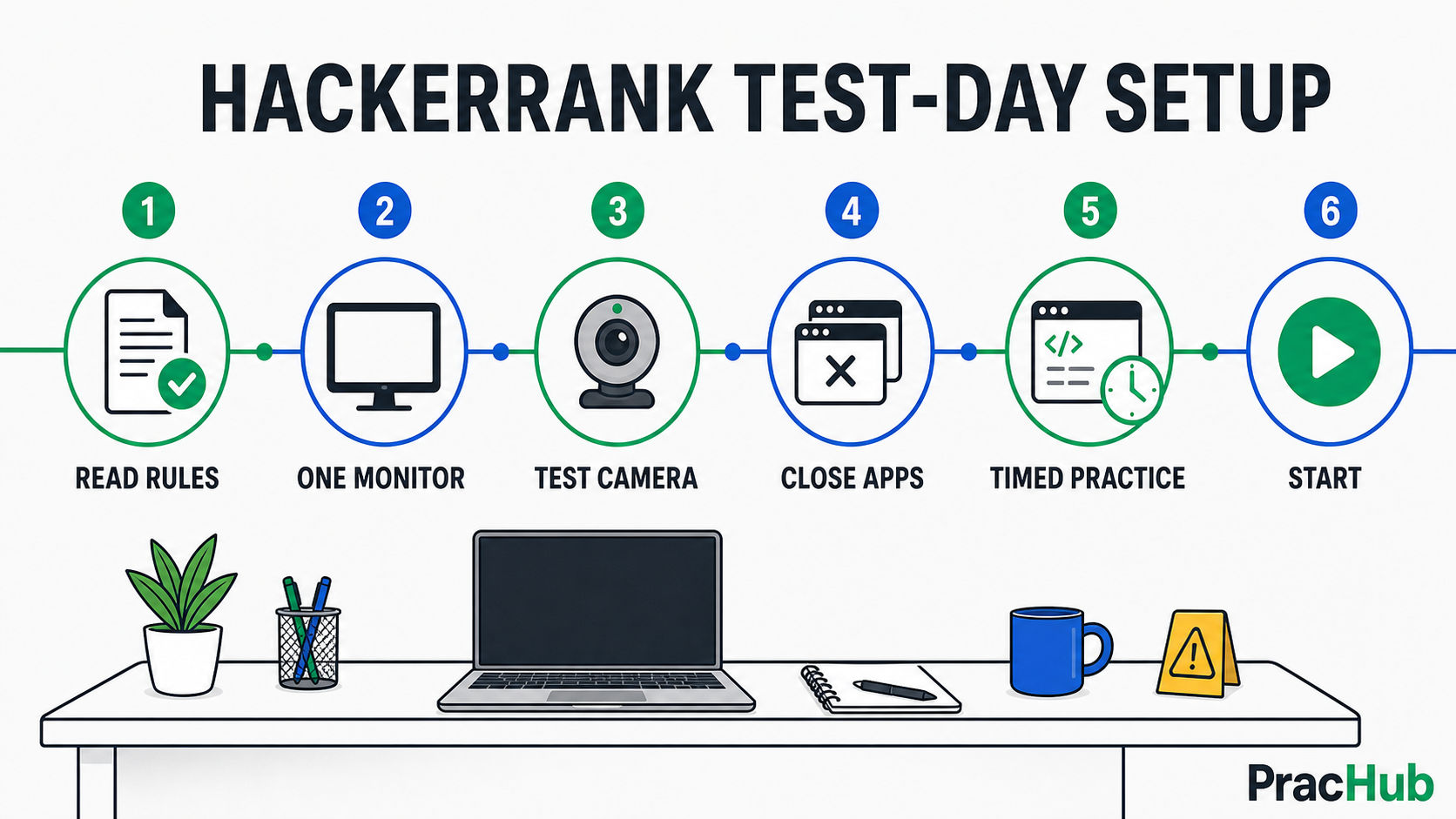
Confirm the rules and environment before the timer starts.
Start by reading the invitation and login-page instructions. Confirm whether the test uses a browser or desktop app, whether a webcam or ID is required, and whether documentation, an IDE, or AI tools are allowed.
Then simulate those constraints. PracHub's complete HackerRank assessment guide covers question formats and hidden-test strategy; use it with real PracHub questions to run one timed mock without tabs, notes, or pasted code.
On test day, use one supported computer and one monitor, silence notifications, close messaging and AI applications, test your camera if required, and keep the test window active. If the instructions allow a resource, use only that resource and only in the permitted way.
Frequently Asked Questions
Does HackerRank record your entire desktop?
Not on every test. Standard tracking can log tab exits, copy-paste events, and editor activity without recording the whole desktop. Proctor Mode can require full-screen sharing, periodic screenshots, and session replay. Desktop App Mode adds broader operating-system controls.
Can HackerRank see which tab you opened?
HackerRank can record that you left the active test and how long you were away. In Proctor Mode, screenshots or screen-session evidence may provide more context. The exact visibility depends on the mode and permissions enabled for the assessment.
Does HackerRank record webcam video?
Webcam use is configuration-dependent and requires permission. Image Proctoring captures periodic webcam images, while Proctor Mode can include webcam monitoring and a synchronized replay. Photo Identification captures a pre-test photo rather than continuously monitoring the full assessment.
Can HackerRank detect two monitors?
Yes, stricter modes include a multiple-monitor check. Secure Mode allows the test to continue only with one monitor, and Proctor or Desktop App onboarding can require the same check. Disconnect secondary displays before starting.
Can I use Google or documentation during HackerRank?
Only when the hiring company permits it. HackerRank tests are employer-configured, so there is no universal open-book rule. Read the invitation and on-screen integrity guidelines, and ask the recruiter before the test if allowed resources are unclear.
Final Takeaway
HackerRank can detect tab switching and track copy-paste activity, but full screen capture, webcam monitoring, and desktop controls depend on the assessment mode. Treat every permission prompt and integrity guideline as part of the test, not as boilerplate.
The simplest strategy is also the strongest: know the rules, prepare the environment, and build enough independent skill that you do not need outside help. Practice with PracHub's real interview questions and written solutions, then reproduce that work under the exact constraints your employer will use.
Sources
This guide was checked on August 6, 2026 against HackerRank's official Test Integrity overview, Secure Mode documentation, Proctor Mode documentation, Desktop App Mode documentation, Image Proctoring and Image Analysis guide, Photo Identification guide, Candidate Summary Report guide, and candidate pre-test FAQ.
Comments (0)